
Saving and sharing scenes#
This section explains how to save a 3D scene and share it with others using HelloTriangle.
A scene represents the current state of the 3D viewer, including:
All drawn objects
Their styling (colors, opacity, visibility, etc.)
Scene-level settings such as background color and camera type
Once saved, a scene can be directly opened and explored interactively in a web browser.
Preparing a scene#
Before saving a scene, you may want to adjust its appearance.
You can:
Modify object colors and opacity
Show or hide individual objects
Adjust face, edge, and point styling
Change the background color or camera type
These settings can be configured either:
Directly in your Python script (using
draw,set_background, andset_camera; see Drawing objects), orInteractively in the Visualization Settings panel
Note
Any manual changes made in the visualization panel apply to the current session. When re-running the script, only settings defined in code are preserved.
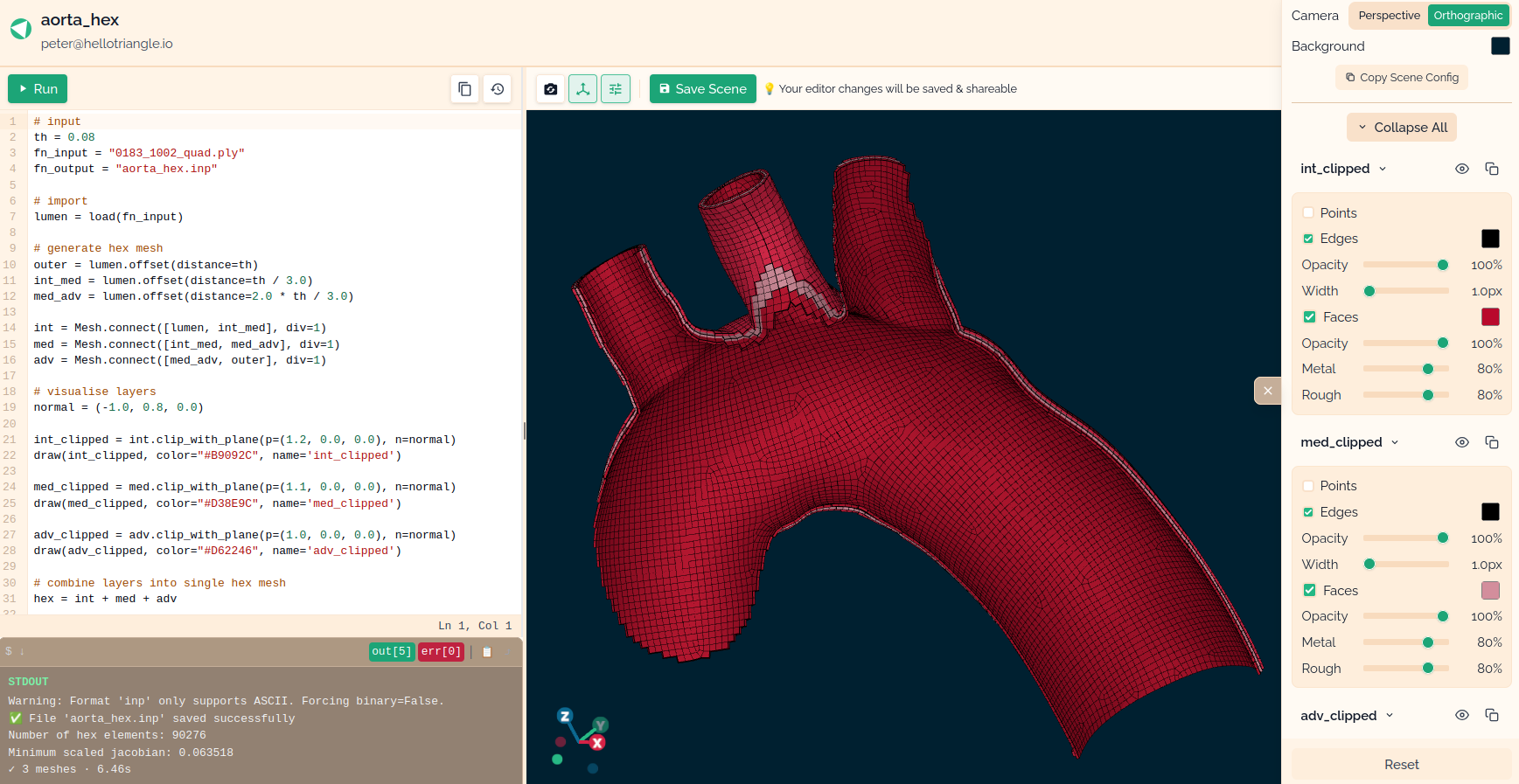
Scene editor / 3D visualization panel (shown on the right).#
Saving a scene#
Once your scene looks as intended, you can save it:
Open the 3D viewer
Click the Save scene button in the toolbar
This stores a snapshot of the current scene configuration.
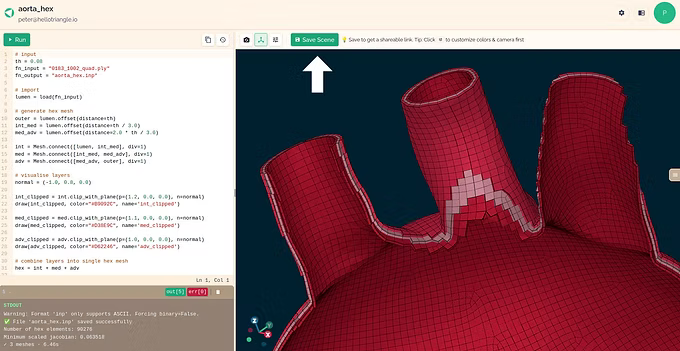
Location of the save scene button in the 3D viewer.#
Accessing saved scenes#
After saving a scene, it appears in your workspace dashboard. The dashboard provides an overview of all saved scenes in your workspace.
When you hover over a scene thumbnail, several actions become available:
Open scene (center icon) Opens the interactive 3D visualization in the browser.
Copy link (right icon) Copies a shareable link to the scene to your clipboard. This link can be shared with others to allow interactive viewing.
Scene settings (left icon) Opens the scene settings, where you can edit properties such as the thumbnail image.
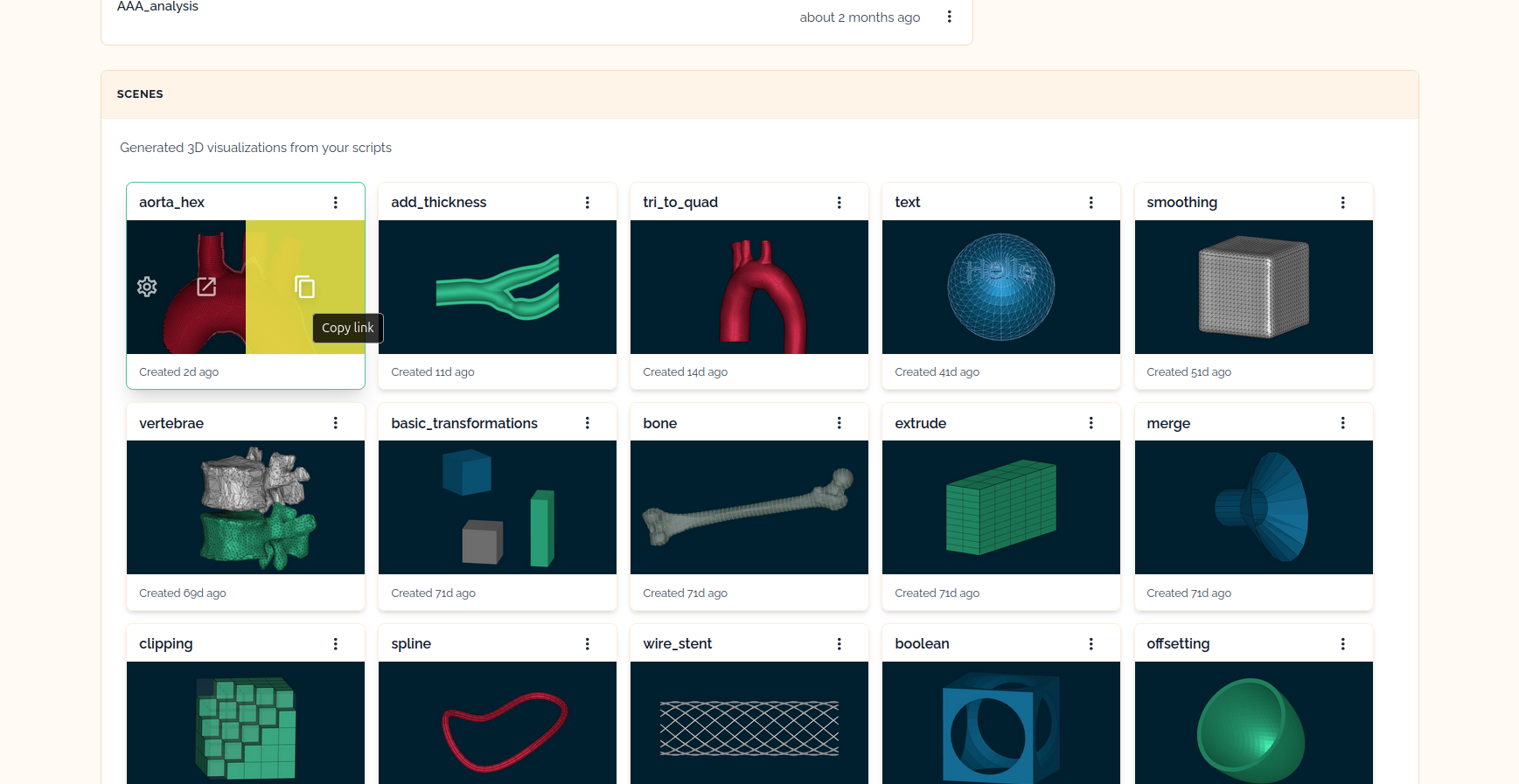
Workspace dashboard showing saved scenes.#
Embedding scenes in a website#
Saved scenes can also be embedded in external websites using an iframe.
Example HTML snippet:
<div style="position: relative; width: 100%; height: 0; padding-bottom: 56.25%;">
  <iframe
    src="https://app.hellotriangle.io/shared/<SCENE_ID>"
    style="position: absolute; top: 0; left: 0; width: 100%; height: 100%; border: none; border-radius: 8px;"
    allowfullscreen>
  </iframe>
</div>
Replace <SCENE_ID> with the identifier of your scene.
This is useful for making your company, research group or project website more interactive.
Scene lifetime and access#
A shared scene remains accessible as long as it exists in your workspace
Existing scene links continue to work until the scene is deleted
You can still access and manage saved scenes after a subscription (or free trial) ends
Future extensions#
Additional scene-sharing features will be added, including:
Viewer permissions (e.g. toggling objects, measurements, comments)
Optional password protection
Custom branding options